Quick Start
Sample Prerequisites
Before starting with NWH Vehicle Physics 2, import the required samples:
Important
NWH Common Package > Common Base Sample must be imported first. This sample is required for all NWH package samples to function properly.
Samples are imported via Package Manager > In Project > NWH Vehicle Physics 2 > Samples.
Note
Samples are found in the Package Manager under the "In Project" category in the left sidebar, NOT under "My Assets" or other categories.
The Base Sample contains the main demo scene and is required before importing other Vehicle Physics samples (Mobile, Multiplayer, etc.).
Vehicle Model Requirements
Warning: Check your vehicle model's rotation and pivot points. Its axes must be Z - Forward, Y - Up, and X - Right. Use this guide to fix incorrect rotation or pivot points.
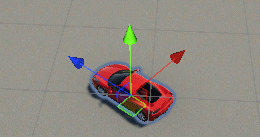
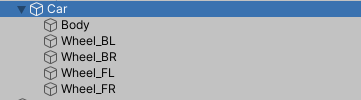
Warning: Keep the vehicle scale at [1,1,1]. Adjust scale in Unity's model import settings or your 3D software before setting up the vehicle.
Physics Settings
- Fixed Timestep: Recommended 0.01667 (60Hz) for desktop, 0.0333 (30Hz) for mobile. Higher rates like 0.01 (100Hz) or 0.00833 (120Hz) provide smoother physics at higher computational cost.
- Solver Iterations: Minimum 12 velocity, 8 position iterations for stable physics.
- All NWH assets use SI units only (kg, m, N, Nm).
For large maps, test the vehicle far from the world origin as well as near it. Floating-point precision decreases with distance and can cause visible or physical jitter. Use Shifting Origin when the map needs it; there is no single distance limit that suits every game.
Automatic Setup
Vehicle Setup Wizard
To set up a vehicle automatically, use the
VehicleSetupWizard. Ensure that your vehicle has correct pivots and rotation
first. Then, attach the
VehicleSetupWizard to the root object of the vehicle, where the
Rigidbody would typically be placed. Follow the steps from the wizard
inspector. The VehicleSetupWizard logs all actions, errors, and
warnings in the console. Review and correct these manually if necessary.
Before running it in a clean project, create the custom tags Vehicle and Wheel under
Edit > Project Settings > Tags and Layers. If Add Character Enter Exit Points is enabled,
also create EnterExitPoint; the wizard assigns these tags and Unity rejects an undefined tag.
Depending on the settings, you might need to set up the input manually:
Input Setup page
Manual Setup
Rigidbody
Add a Rigidbody component to the vehicle root, Car in the image
above. Set the mass to a reasonable value, e.g., 1400.
Colliders
Add a Collider (BoxCollider, MeshCollider, etc.) to the vehicle.
Rigidbody requires a collider.
Variable Center of Mass
Add the VariableCenterOfMass component to the vehicle root. Recommended but optional - center of mass and inertia significantly impact handling. Unity 6000 allows direct adjustment of center of mass and inertia tensor on the Rigidbody.
WheelController3D
NWH Vehicle Physics uses the included WheelController3D package - a complete replacement for Unity's WheelCollider with 3D ground detection, Pacejka friction model, and ARB system. See the WheelController manual for details.
- Create a suspension anchor object above the wheel center (duplicate wheel object, remove all components except Transform, move upward).
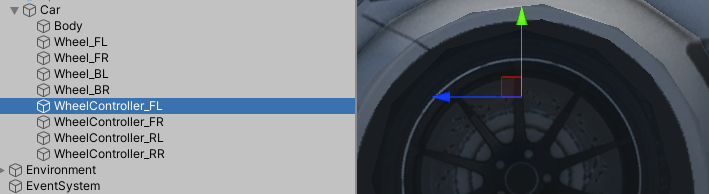
- Make each suspension anchor a direct child of the vehicle's
Rigidbodyobject and add aWheelController. It automatically finds that parent Rigidbody and createsRotatingandNonRotatingvisual containers. - Parent the wheel mesh under
Rotating; parent brake calipers or other parts that should not spin underNonRotating. Do not put colliders on the visual hierarchy. - In the Wheel tab, set Radius and Width to match the model. If needed, use Misc > Setup Actions > Position WheelController to Visual after placing the mesh at its intended rest position.
- Enable Gizmos and verify the wheel cylinder and suspension travel align with the model.
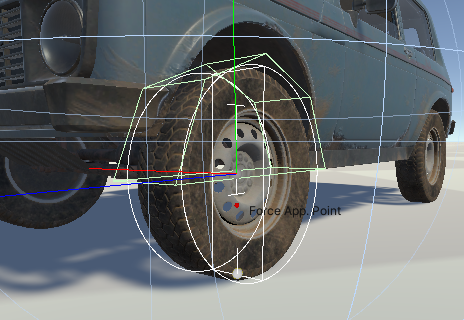
- Press play to test suspension. If vehicle jitters or jumps, verify Rigidbody mass and collider presence. See the WheelController manual and its troubleshooting section.
Input
Add one vehicle provider and one scene provider to a scene object (e.g., SceneManager):
InputSystem (Unity's new input):
InputSystemVehicleInputProviderInputSystemSceneInputProvider
InputManager (legacy):
InputManagerVehicleInputProviderInputManagerSceneInputProvider
Custom input sources can derive from VehicleInputProviderBase. See
Input Setup for details.
Cameras
- Create Cameras GameObject as child of vehicle, add CameraChanger.
- Add Camera child with CameraMouseDrag, set vehicle as
Target. - Any camera works (Cinemachine compatible).
VehicleController
- Add
VehicleControllerto vehicle root (where Rigidbody is). - Auto-initializes Differentials, Wheels, and WheelGroups. Check console output.
- Settings tab: Click
Validate Setupfor automatic validity check. - Press play. Vehicle functional but requires input provider for user control.
Assembly Definitions
This asset uses Assembly Definition (.asmdef) files.
If your scripts use a custom assembly definition:
- Add a reference to
NWH.VehiclePhysics2in your project's.asmdeffile.
If your scripts compile in a predefined Unity assembly such as Assembly-CSharp:
- No project assembly definition is required.
NWH.VehiclePhysics2has Auto Referenced enabled.
Do not delete package assembly-definition files.
Video Tutorials
These videos have been created by Game Dev Project and are not official tutorials but they might help with the setup. Reading the documentation is still highly recommended.
Getting started with NWH Vehicle Physics 2 - Unity Asset Tutorial Model to Driveable in Under 60 Seconds - NWH Vehicle Physics 2 for Unity