Fixing Model Rotation and Pivots
Vehicle Physics requires correct model rotation and scale. Use Blender to fix these before importing into Unity.
Critical Requirements
Warning: Vehicle root transform in Unity MUST have:
- Scale: [1,1,1] - Use import scale, not transform scale
- Rotation: [0,0,0] - Fix orientation in the 3D model itself
- Axis orientation: Z-forward, X-right, Y-up
Unity's official guide is here. Fix rotation in Blender before importing.
Download Blender: https://www.blender.org/
Checking Rotation in Unity
Switch transform handle to Local rotation to see object axes instead of world axes.
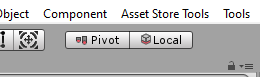
Correct orientation:
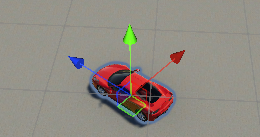
- Blue arrow (Z): Points forward
- Green arrow (Y): Points up
- Red arrow (X): Points right
If arrows point in different directions, rotation is incorrect. If arrows are not centered, pivot is incorrect.
Fixing Rotation in Blender
Import your model in Blender 2.8+ (File → Import → [Format]).
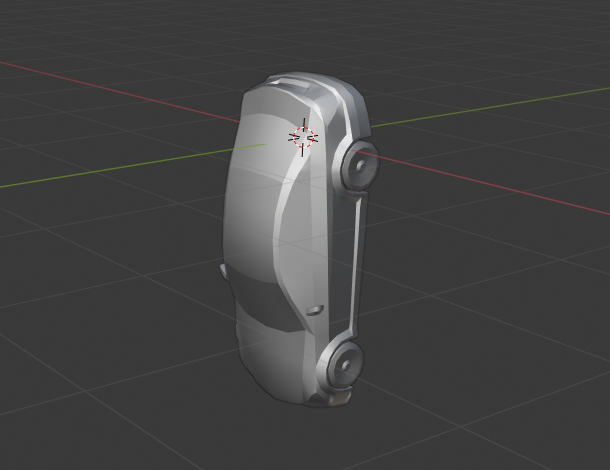
Note: Blender uses Y-forward, X-right, Z-up. Unity uses Z-forward, X-right, Y-up.
Steps
- Select vehicle (A key to select all)
- Rotate: Press R → X/Y/Z to rotate on chosen axis
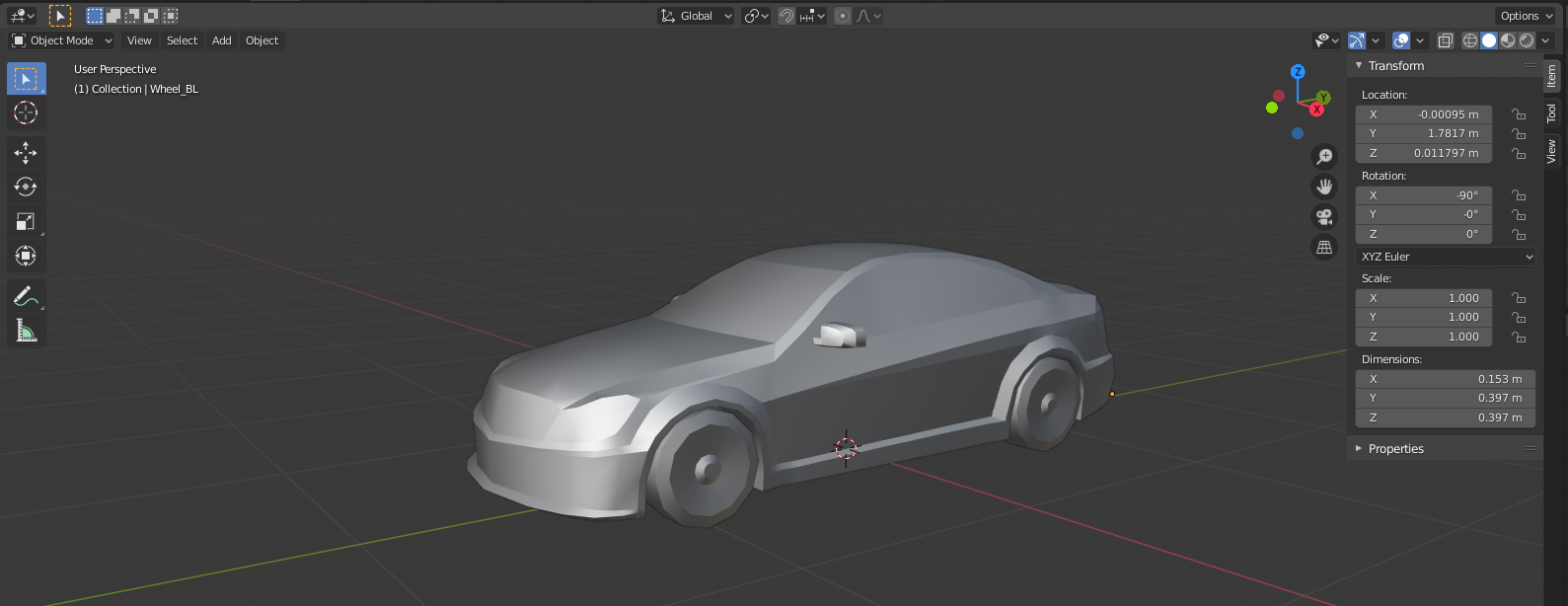
- Model should point towards -Y axis (see image below)
- Z should be up, X should be left
- Apply rotation: Ctrl + A → Rotation (resets rotation values to 0)
- Center model: Press G → X/Y/Z to move along axis
- Repeat for moving parts: Wheels and steering wheel need correct rotation
- Export: File → Export → FBX with these settings:
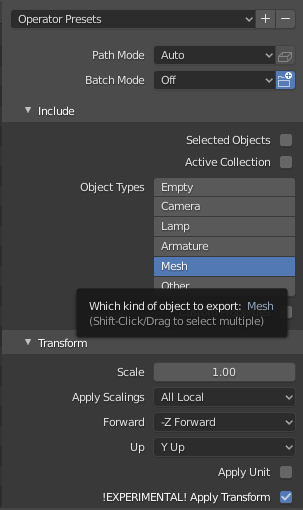
- Verify in Unity: Check rotation in Inspector
Fixing Pivot
Pivot is the rotation point for objects. Incorrect wheel pivots cause off-center rotation.
Check Pivot in Unity
Set tool handle to Pivot and select the object. Wheel pivot must be at exact center.
Fix Pivot in Blender
Pivot is marked by a small yellow dot.
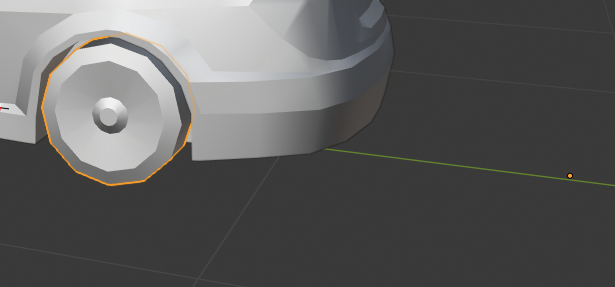
To center pivot:
- Select the object
- Press F3
- Type "Set Origin"
- Select Origin To Center Of Mass (Volume)
Yellow dot should now be centered:
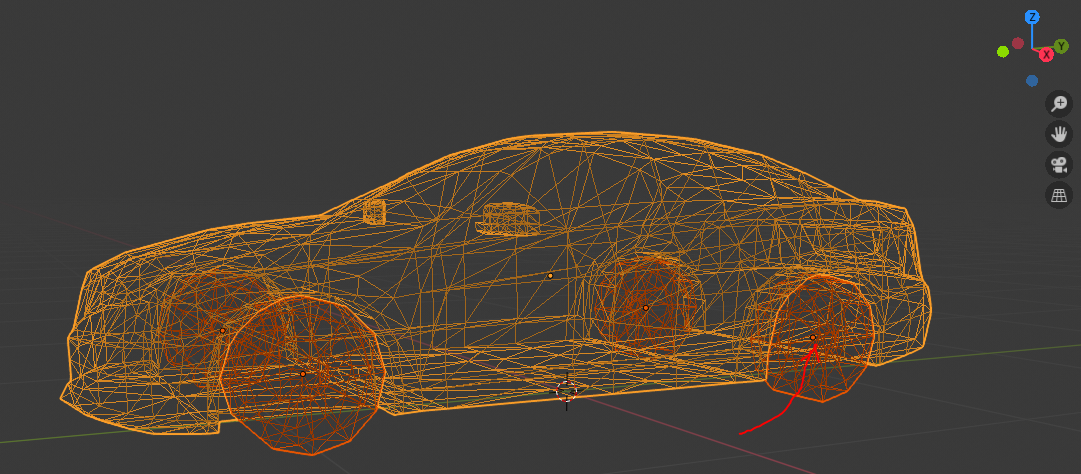
Export to FBX (File → Export → FBX) when complete.