Quick Start
This guide sets up NWH Wheel Controller 3D as a standalone wheel and suspension solution using
the included Base Sample CarController.
Info: If you are building a complete vehicle with NWH Vehicle Physics 2, use the NWH Vehicle Physics 2 documentation instead. Do not add the standalone
CarControllerto a Vehicle Physics vehicle.
Before You Start
Import the Standalone Sample
CarController is part of the Wheel Controller Base Sample. Import the samples in this order:
- Open the Package Manager and select In Project.
- Select NWH Common Package, open Samples, and import Common Base Sample.
- Select NWH Wheel Controller 3D, open Samples, and import Base Sample.
The package declares Unity's Input System as a dependency. In Edit > Project Settings > Player, set Active Input Handling to Input System Package (New) or Both.
Model Requirements
- Use Unity's vehicle axes: Z forward, Y up, and X right.
- Keep the vehicle root scale at
[1, 1, 1]. Correct model orientation and scale in the model importer or your 3D software. - Give each visual wheel a centered pivot and the same axis orientation.
If the model does not meet these requirements, see Fixing Model Rotation.
1. Set Up the Vehicle Body
- Put the vehicle model under one root GameObject.
- Add a
Rigidbodyto that root and set its mass in kilograms. - Add one or more body
Collidercomponents under the Rigidbody root.
Each Wheel Controller created below must be a direct child of this Rigidbody root. Multi-level nesting of Wheel Controller objects is not supported.
2. Create the Wheels Manually
Repeat these steps for every wheel:
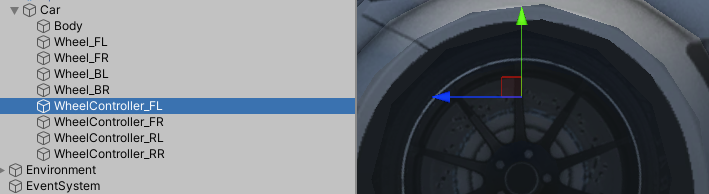
- Create an empty GameObject as a direct child of the Rigidbody root. Use a clear name such as
WheelController_FL. - Position it near the wheel's suspension origin, directly above the visual wheel.
- Add a
WheelControllercomponent. - Move the wheel mesh under the generated
Rotatingchild. Move a brake caliper or another part that should steer but not spin underNonRotating. - In the Wheel Controller inspector, open Misc > Setup Actions and select
Position WheelController to Visual. This positions the suspension origin from the first
visual under
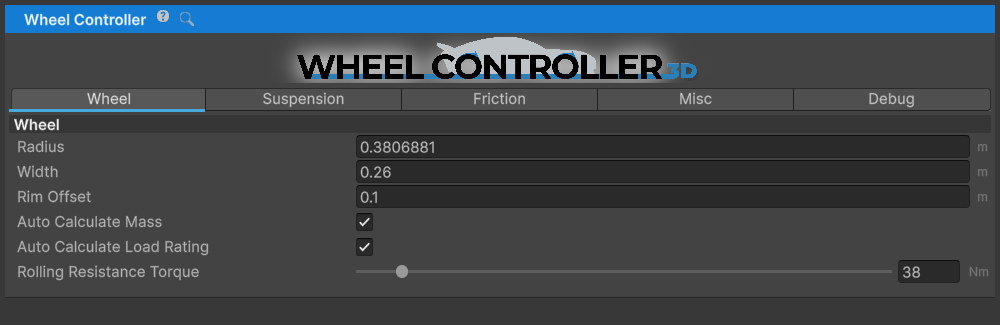
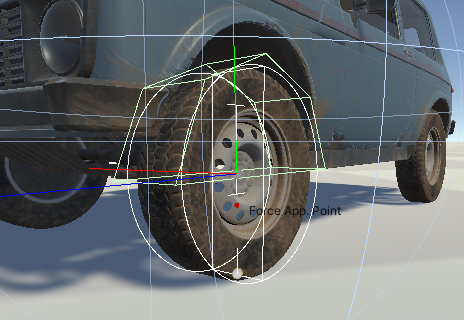
Rotatingwhile keeping that visual in place. - Open the Wheel tab and adjust Radius and Width until the wheel gizmo matches the visual mesh.
Adding WheelController runs its editor reset path: it finds the parent Rigidbody when the target
is empty, creates the Rotating and NonRotating containers, and adds StandardFriction and
StandardGroundDetection when they are missing.
3. Adjust the Suspension
- Select a wheel and open the Suspension tab.
- Use Spring > Max Length for the available suspension travel.
- Enter Play mode and watch the compression indicator. Adjust Spring > Max Force so a typical car rests near 30% compression.
- Use the Ride Height
-and+buttons to move the suspension origin in 0.01 m increments. - Tune Damper > Bump Rate and Rebound Rate after the spring supports the vehicle at the intended height.
4. Add Standalone Vehicle Control
Add CarController to the Rigidbody root after all child Wheel Controllers exist.
When Unity adds or resets CarController, its Reset() method scans child WheelController
components once and stores them in the serialized Wheels list. The initial flags are assigned
by discovery order:
- The first two entries have Steer enabled.
- Every entry has Power enabled.
- Entries after the first two have Handbrake enabled.
Inspect every list entry and configure Power, Steer, and Handbrake for the intended drivetrain. Also review Max Motor Torque, Max Brake Torque, Max Steering Angle, and Min Steering Angle.
Important: The Wheels list is not continuously rediscovered. If you add, remove, or reparent Wheel Controllers later, update the list manually or reset
CarControllerand then recheck all controller values and wheel flags.
5. Test the Vehicle
- Add a ground object with a
Collider. - Enter Play mode.
- Use the shipped bindings:
- A / D: steer
- W / S: forward / reverse and direction-sensitive braking
- Space: handbrake
- Gamepad left stick: steer
- Gamepad right trigger: positive throttle
- Gamepad east button: handbrake
CarController creates and enables the shipped CarInputActions wrapper and reads its
CarControls action map in FixedUpdate(). See Input for the complete standalone input
flow.
Enabled wheels register themselves with WheelControllerManager. The manager creates itself when
needed and performs wheel substeps from its FixedUpdate(); no manager component or manual wheel
simulation call is required for this setup.
Friction Presets
New wheels load the shipped default FrictionPreset. To make another preset:
- Right-click in the Project window.
- Select Create > NWH > Vehicle Physics 2 > Friction Preset.
- Adjust its BCDE parameters.
- Assign it to Active Friction Preset on one or more wheels.
The Vehicle Physics 2 segment is part of the menu path currently shipped by the Wheel Controller package. See Friction Preset for tuning details.
Assembly Definitions
Wheel Controller's package assembly is named NWH.WheelController and is auto-referenced.
- Scripts in Unity's predefined assemblies, such as
Assembly-CSharp, need no manual reference. - If your script is in a custom assembly definition, add
NWH.WheelControllerto that assembly's Assembly Definition References. - Keep the package assembly definitions in place.
NWH.WheelController3D is the C# namespace used by Wheel Controller types; it is not the assembly
name.
Troubleshooting
- The CarController Wheels list is empty: Ensure the Wheel Controllers are children of the
vehicle root, then reset
CarControlleror populate the list manually. - The vehicle does not respond to controls: Confirm that the Base Sample is imported and Active Input Handling includes the Input System.
- A wheel reports that no parent Rigidbody was found: Make the Wheel Controller a direct child of the Rigidbody root.
- A wheel mesh does not rotate: Put it under that wheel's
Rotatingcontainer. - The suspension bottoms out: Increase Spring > Max Force, or increase Max Length if the suspension needs more travel.
For more setup details, see Wheel Controller and Wheel Controller considerations.