State Settings
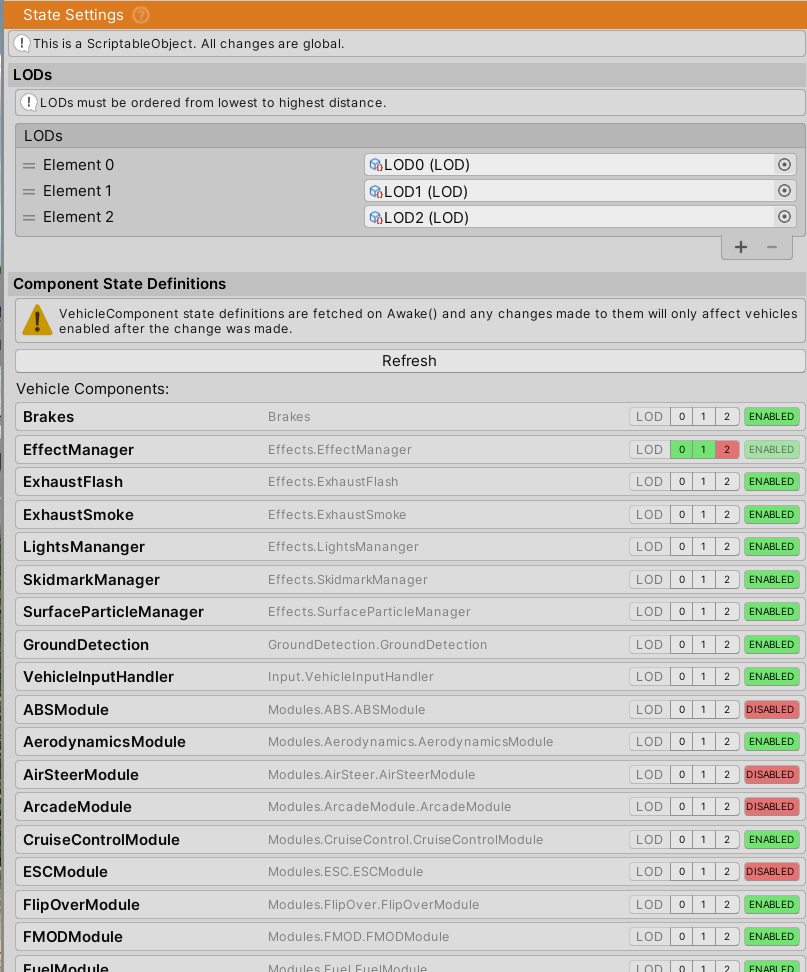
StateSettings is a ScriptableObject that controls which vehicle components are enabled and at which LOD (Level of Detail) level they operate. Configuration is centralized and can be shared across multiple vehicles.
Create: Right-click in Project > Create > NWH > Vehicle Physics 2 > State Settings
Assign: Settings tab of VehicleController
Overview
StateSettings provides:
- Component enable/disable states for performance tuning
- Distance-based LOD switching for automatic performance scaling
- Shared configuration between multiple vehicles
- Platform-specific optimization profiles (mobile, desktop, etc.)
State is loaded once during vehicle initialization, so StateSettings sets the initial state for all vehicle components.
LODs
LOD levels range from 0 (highest detail, closest) to higher numbers (lower detail, farther).
Distance ordering: LODs must be ordered from lowest to highest distance. The editor will warn if distances are out of order.
How it works:
- Each component has a
lodIndex(-1 disables LOD for that component) - At runtime, if
component.lodIndex <= vehicle.activeLodIndex, the component is enabled - The
activeLodIndexis determined by camera distance - LOD overrides the manual ENABLED toggle when active
Typical setup:
- LOD 0 (0-50m): All components active - full physics, effects, sounds
- LOD 1 (50-100m): Reduced effects, simplified audio
- LOD 2 (100m+): Minimal components - basic physics only
State Definitions
StateSettings contains a list of StateDefinition objects, one for each VehicleComponent type in the project.
Each definition has:
- fullName: Fully qualified type name (e.g., "NWH.VehiclePhysics2.Sound.SoundManager")
- isEnabled: Whether component should be enabled by default
- lodIndex: LOD level for this component (-1 = always active when enabled)
Refresh button: Click to scan assemblies and update the list when adding/removing custom components.
Runtime changes: Changes to StateSettings only affect vehicles initialized after the change. Already-running vehicles retain their initial state.
Usage Examples
Desktop high-performance:
- LOD 0-2 with all components enabled
- Switch distances: 50m, 100m, 200m
Mobile optimization:
- LOD 0-1 with effects/sounds disabled at LOD 1
- Switch distances: 30m, 60m
Multiplayer:
- Different StateSettings for local player vs. remote vehicles
- Remote vehicles use higher LODs with minimal components
See VehicleComponent for component lifecycle and state management details.