Supported Water Systems
WaterDataProvider components connect Dynamic Water Physics 2 to a water
surface. They supply water height and, where the integration supports them,
surface normal and flow data.
The current package ships built-in flat-water support and these optional integration samples:
- Crest
- KWS
- Lux Water
- R.A.M. (River Auto Material)
- Stylized Water 3
- Unity HDRP Water
Install the corresponding water asset and its required packages before importing an integration sample. Import samples from Window > Package Manager > NWH Dynamic Water Physics 2 > Samples.
Using multiple water surfaces
Multiple provider types can be used in one scene. A trigger Collider on the
same GameObject as a WaterDataProvider defines the provider's area.
- If no collider is present, the provider creates a trigger
SphereColliderwith a radius of 1,000,000 units duringAwake. - If a collider is present but
Is Triggeris disabled, the provider enables it and logs a warning. - When provider volumes overlap, a
WaterObjectuses the most recently entered provider until it exits that volume.
Use a deliberately sized trigger for local water such as a lake.
Flat water
FlatWaterDataProvider works with any flat water renderer or shader:
- Add
FlatWaterDataProviderto a GameObject at the desired water height. WaterObjectcomponents inside its trigger use that GameObject'stransform.yas the surface height.
It can also replace a wavy provider when wave amplitude is zero, avoiding unnecessary height queries.
Crest
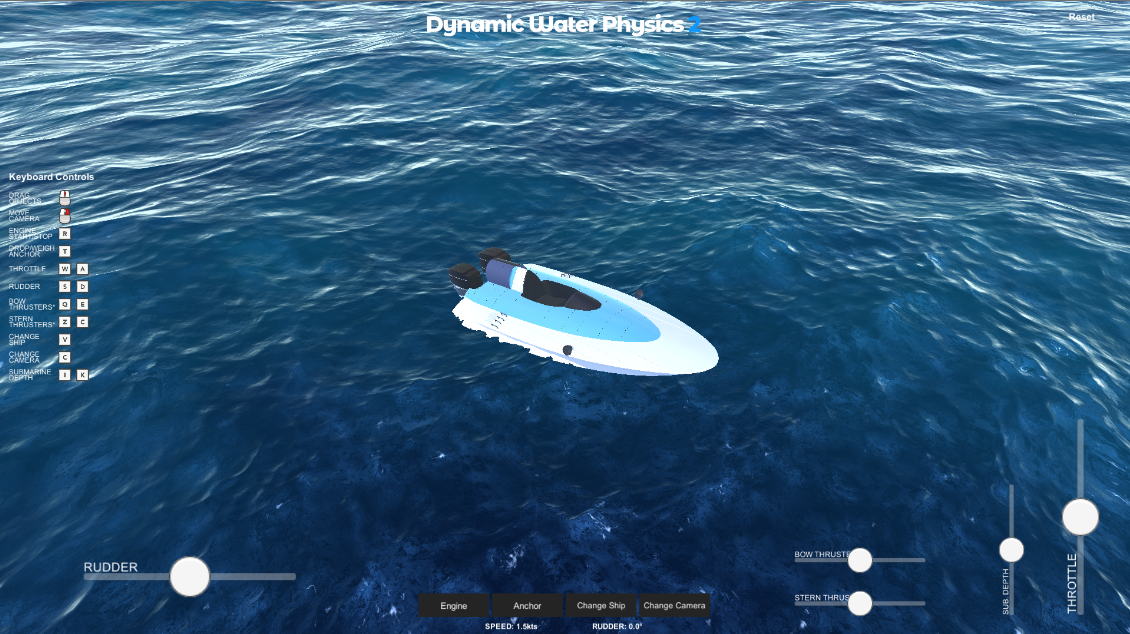
The currently shipped sample targets Crest 5+ (WaveHarmonic.Crest) and
supports height, normal, and flow queries.
Required packages and assemblies
Before importing the sample, make sure all of the following are installed:
- NWH Dynamic Water Physics 2 (
NWH.DWP2) and its NWH Common dependency (NWH.Common). - Crest 5+ (
WaveHarmonic.Crest), includingWaveHarmonic.Crest.Shared.
Crest - CPU Queries (WaveHarmonic.Crest.CPUQueries) is optional. The
provider reads water data through Crest's CollisionProvider, which runs on
the GPU in the Editor and in client builds, so those do not need the package.
Note
Install CPU Queries only for headless server builds. Without a GPU, Crest's default collision provider cannot sample the water surface and the CPU provider takes its place.
After installing the dependencies:
- Import NWH Common Package > Common Base Sample.
- Import NWH Dynamic Water Physics 2 > Base Sample.
- Import NWH Dynamic Water Physics 2 > Crest Integration.
- For a custom scene, add
CrestWaterDataProviderto a scene GameObject and make sure the scene contains a CrestWaterRenderer.
The integration includes CrestIntegrationDemo.unity. To open that bundled demo, also import
the Crest package's Wakes sample; the scene references its wake prefab and materials. The
Common and DWP Base samples supply the demo's shared scene and water-object assets.
Crest versions before 5
The current sample is supported for Crest 5+. The
DWP_CREST_LEGACY scripting symbol changes C# namespace selection, but it does
not replace the sample assembly's Crest 5 references. Adding that symbol alone
is therefore not a complete legacy setup.
Projects that must remain on an older Crest release need a separately maintained
integration and assembly definition compatible with that release.
KWS
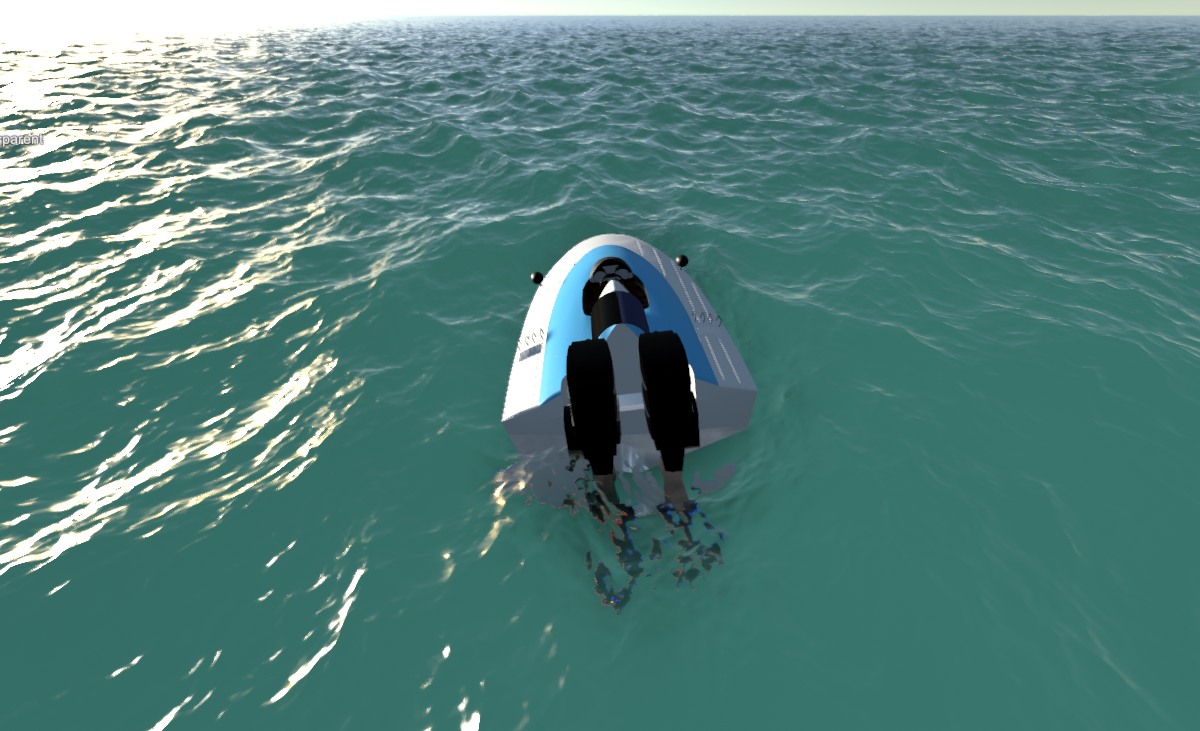
- Install KWS.
- Import the KWS Integration sample.
- Add
KWSWaterDataProviderto a scene GameObject.
The imported sample includes KWSIntegrationDemo.unity and supplies height
and flow data. Its provider reports that water-normal queries are unsupported.
Lux Water
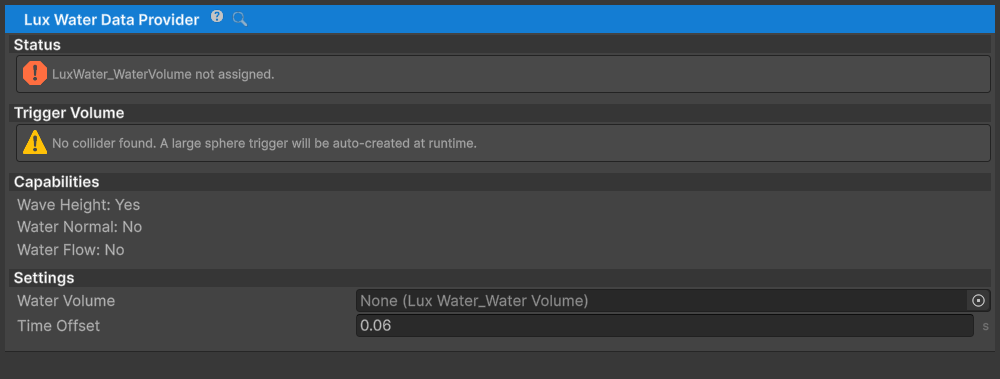
- Install Lux Water.
- Import the Lux Water Integration sample.
- Add
LuxWaterDataProviderto a scene GameObject. - Assign the Lux Water object's
LuxWater_WaterVolumecomponent to Water Volume. A provider on the same object can infer that volume; assign it explicitly when the scene has multiple volumes.
The integration supplies water height data.
R.A.M. (River Auto Material)
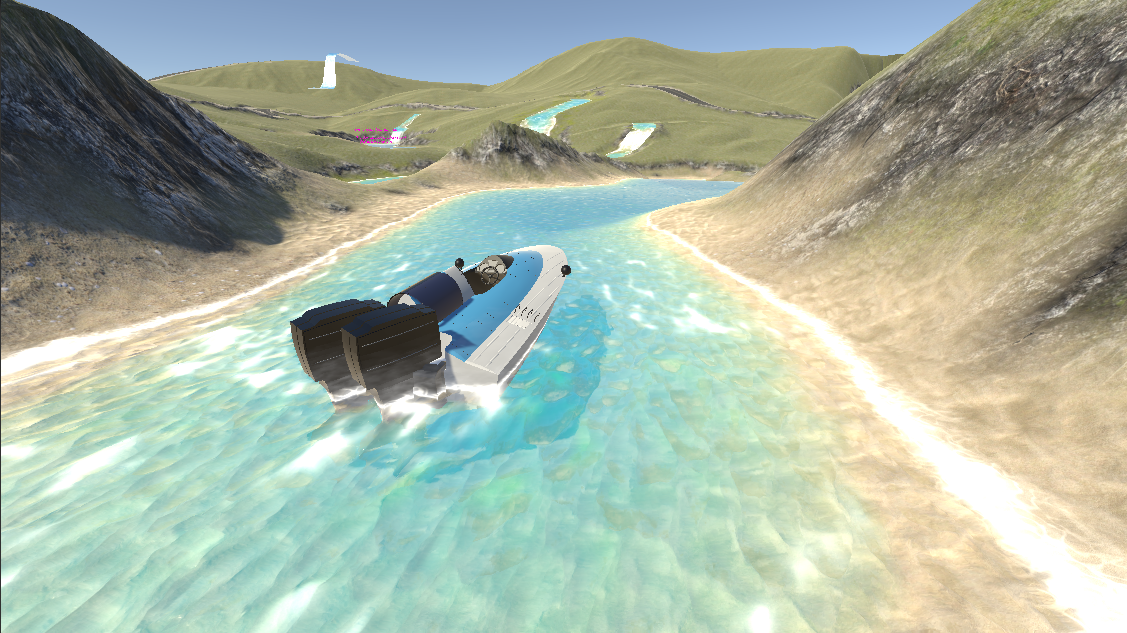
- Install R.A.M.
- Import the R.A.M Integration sample.
- Add
RAMWaterDataProviderto a scene GameObject. - Make sure the R.A.M. water object has a
MeshCollider. - Assign the provider's water and object layers. The provider disables
collisions between those layers so
WaterObjectcomponents query the river instead of resting on its collider.
This raycast-based integration supplies height, normal, and flow data.
Stylized Water 3
- Install Stylized Water 3.
- Import the Stylized Water 3 Integration sample.
- Add
StylizedWater3WaterDataProviderto a scene GameObject. - Assign the Stylized Water 3 wave profile.
The imported sample includes SW3IntegrationDemo.unity.
Unity HDRP Water
This optional integration requires an HDRP project with Unity's HDRP Water system available. The Dynamic Water Physics package manifest still declares URP 17.0.3 for the package and its default sample assets; importing this sample adds HDRP-specific assembly requirements.
- Install an HDRP version compatible with the project and configure an HDRP Water Surface.
- Import the Unity HDRP Water Integration sample.
- Add
UnityHDRPWaterDataProviderto a scene GameObject.
Historical integrations
Ceto, Ocean Community Next Gen, and SUIMONO integrations were removed in the
product v14 line. They are not bundled or supported by the current package.
Keep an older package release or maintain a custom WaterDataProvider only
when migrating a project that already depends on one of them.