Landing Gear
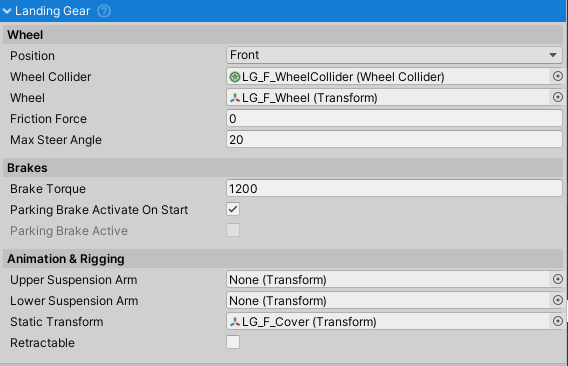
LandingGear component takes care of steering, brakes, rigging and
animation.
Basic Setup
- Set up
WheelColliders for each landing gear wheel as per Unity's guide. - Assign the created
WheelColliderto theWheelColliderfield. Assign the wheel transform (model representing the wheel) to theWheelfield. - Select the
Positionof the wheel (front, left, right, etc.) - Set the
maxSteerAngleif the wheel is steerable. Leave at 0 if not.
Rigging
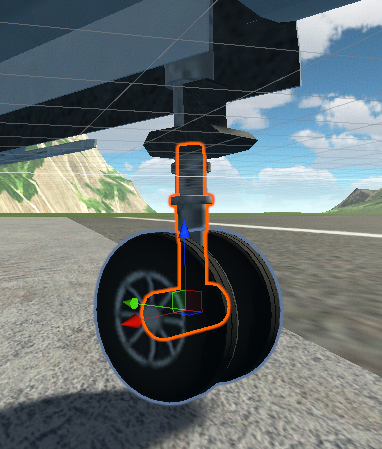
For rigging to work properly, a specific model setup is required with the following hierarchy:
- SuspensionArmUpper
- SuspensionArmLower
- WheelCollider
- WheelModel
- SuspensionArmLower
Assign the upper and lower suspension arm to the upperSuspensionArm
and lowerSuspensionArm fields. The SuspensionArmLower should have
rotation such that it's local Z axis points towards the pivot point of
the SuspensionArmUpper:
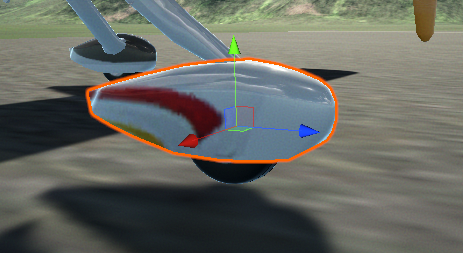
Objects that move and steer with the wheel such as fairing can be added
to the Static Transform field.
Animation
Landing gear that can extend/retract can use animation to achieve this. This guide does not cover the steps to set up the animation, as this is a standard Unity process and is explained in the official Unity animation controller tutorial.
The default state for animation is extended landing gear. The default animation (going forward) is extended => retracted. Extending the landing gear is simply the retracting animation played in reverse.
Setup
- Tick
Retractableto indicate that the landing gear of the aircraft can retract. - Tick
IsExtendedif the initial state is extended landing gear. - Create new
AnimationController. - Add
Animatorto the objectLandingGearis attached to and assign theAnimationControllerto theControllerfield. - Add
Directionparameter toAnimationControllerand set the value to 1. - Create
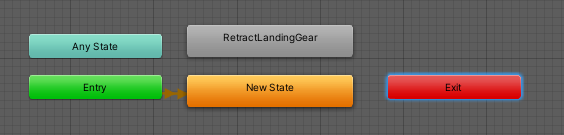
AnimationControllerwithRetractLandingGearstate:
- Set the
RetractLandingGearstate speed to 1 and apply theDirectionparameter as a speed multiplier. - Create new
Animationand animate the landing gear as wanted. Initial state should be extended, final state should be retracted. - Assign the new
Animationto the previously createdAnimationController. - Assign the
Animatorto theAnimatorfield.