HUD_Altimeter
Overview
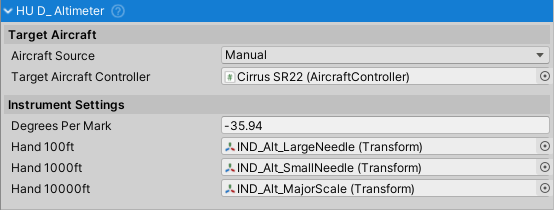
The HUD_Altimeter class displays aircraft altitude in feet using a three-hand analog altimeter design, mimicking real-world aviation altimeters. Each hand rotates independently to indicate different altitude scales: 100ft, 1000ft, and 10000ft increments. The instrument reads altitude from the aircraft controller and converts it to realistic mechanical altimeter needle positions.
Inherits from HUD_Instrument, which provides aircraft controller integration and automatic source management.
Key Features
- Three-hand altitude indication (100ft, 1000ft, 10000ft)
- Automatic conversion from meters to feet (aviation standard)
- Support for both 2D UI Canvas and 3D cockpit instruments
- Compatible with ShiftingOrigin for large-scale worlds
- Real-time altitude tracking via
LateUpdate()
Public API
Properties
degreesPerMark
Type: float
Default: -35.94f
Defines the rotation in degrees per major scale marking. This value determines how much each hand rotates for its respective increment:
- 100ft hand: rotates
degreesPerMarkdegrees per 100 feet - 1000ft hand: rotates
degreesPerMark * 0.1degrees per 1000 feet - 10000ft hand: rotates
degreesPerMark * 0.01degrees per 10000 feet
The negative default value indicates counter-clockwise rotation, which is standard for aviation altimeters.
hand100ft
Type: Transform
The transform representing the 100-foot hand. Completes one full rotation every 1000 feet of altitude change.
hand1000ft
Type: Transform
The transform representing the 1000-foot hand. Completes one full rotation every 10000 feet of altitude change.
hand10000ft
Type: Transform
The transform representing the 10000-foot hand. Often implemented as a rotating background element visible through a small window rather than a traditional needle. Completes one full rotation every 100000 feet of altitude change.
Inherited Properties
From HUD_Instrument:
targetAircraftController
Type: AircraftController
The aircraft controller that provides altitude data via the Elevation property.
aircraftSource
Type: AircraftSource (enum: Manual, VehicleChanger)
Determines how the target aircraft is assigned:
Manual: Manually assign via Inspector or codeVehicleChanger: Automatically tracks active vehicle from VehicleChanger system
Integration with Aircraft Controller
The altimeter reads altitude from AircraftController.Elevation (in meters) or AircraftController.ElevationFt (in feet), accounting for ShiftingOrigin offset when present. For direct foot-based access, use ElevationFt:
float altitudeFt = targetAircraftController.ElevationFt;
Alternatively, the internal calculation scales meter values by applying meter-to-feet conversion (3.28084) with a 0.01 factor for working with the modulo-based hand positioning system:
float alt = targetAircraftController.Elevation * 3.28084f * 0.01f;
Setup Guide
1. Basic Configuration
- Add
HUD_Altimetercomponent to your instrument GameObject - Assign the three hand transforms (
hand100ft,hand1000ft,hand10000ft) - Set
targetAircraftControllerto your aircraft (or useVehicleChangermode) - Ensure hand transforms rotate around the Z-axis
2. Hand Positioning
For 3D cockpit instruments:
- Verify that hand transforms have their Z-axis set as the rotation axis in your 3D modeling software
- If not possible, create an empty parent GameObject oriented correctly and attach the visual mesh as a child
- Set Unity editor to Pivot/Local mode (top-left toolbar) to verify rotation axes
3. Calibration
The default degreesPerMark value (-35.94) works for standard aviation altimeter scales where:
- Full dial = 360 degrees
- Major markings = 100ft increments
- 10 markings per full rotation = 1000ft
To calibrate for custom gauges:
- Calculate:
degreesPerMark = -(360 / number_of_major_markings) - Use negative for counter-clockwise, positive for clockwise rotation
- Test at known altitudes (0ft, 1000ft, 10000ft)
4. Canvas vs 3D Instruments
Canvas (2D UI):
- Works out-of-box with RectTransforms
- Use for HUD overlays or glass cockpit displays
3D Cockpit:
- Requires proper pivot point setup (see Hand Positioning above)
- Reference the Cirrus SR22 aircraft in demo scenes for example setup
- Ensure local rotation around Z-axis is correctly configured
Code Examples
Basic Setup via Code
using NWH.Aerodynamics.AircraftController.Instruments;
using UnityEngine;

public class AltimeterSetup : MonoBehaviour
{
    void Start()
    {
        // Get or add altimeter component
        HUD_Altimeter altimeter = GetComponent<HUD_Altimeter>();

        // Assign aircraft
        altimeter.targetAircraftController = FindObjectOfType<AircraftController>();

        // Assign hand transforms (assumes children named appropriately)
        altimeter.hand100ft = transform.Find("Hand100ft");
        altimeter.hand1000ft = transform.Find("Hand1000ft");
        altimeter.hand10000ft = transform.Find("Hand10000ft");

        // Optional: Adjust for custom gauge
        altimeter.degreesPerMark = -36f; // Standard aviation altimeter
    }
}
Dynamic Aircraft Switching
using NWH.Aerodynamics.AircraftController.Instruments;

public class CockpitManager : MonoBehaviour
{
    [SerializeField] private HUD_Altimeter altimeter;

    public void SwitchAircraft(AircraftController newAircraft)
    {
        // Manual aircraft switching
        altimeter.targetAircraftController = newAircraft;
    }

    public void EnableAutoTracking()
    {
        // Switch to VehicleChanger mode for automatic tracking
        altimeter.aircraftSource = HUD_Instrument.AircraftSource.VehicleChanger;
    }
}
Custom Altimeter with Altitude Limits
using NWH.Aerodynamics.AircraftController.Instruments;
using UnityEngine;

public class CustomAltimeter : HUD_Altimeter
{
    [SerializeField] private float maxDisplayAltitude = 50000f; // feet
    [SerializeField] private GameObject overMaxWarning;

    new void LateUpdate()
    {
        if (targetAircraftController == null) return;

        float altitudeFt = targetAircraftController.ElevationFt;

        // Check altitude limits
        if (altitudeFt > maxDisplayAltitude)
        {
            overMaxWarning?.SetActive(true);
            return;
        }
        else
        {
            overMaxWarning?.SetActive(false);
        }

        // Call base implementation
        base.LateUpdate();
    }
}
Technical Notes
Altitude Calculation Details
The altitude calculation uses modulo operations to wrap hand positions:
alt100 = alt % 100- Hand position within 0-100 rangealt1000 = alt % 1000- Hand position within 0-1000 rangealt10000 = alt % 10000- Hand position within 0-10000 range
This creates the characteristic "geared" behavior where faster hands drive slower hands.
ShiftingOrigin Compatibility
When ShiftingOrigin is present in the scene, AircraftController.Elevation automatically accounts for world offset, ensuring accurate altitude readings in large worlds without floating-point precision issues.
Coordinate System
- Altitude is measured along the Y-axis (Unity's up direction)
- All rotations are applied to local Z-axis (perpendicular to instrument face)
- Uses
localEulerAnglesfor rotation to maintain independence from parent transforms
Common Issues
Hands rotating in wrong direction:
- Flip the sign of
degreesPerMark(positive ↔ negative)
Hands not visible/rotating:
- Verify transforms are assigned in Inspector
- Check that hand GameObjects are active
- Ensure
targetAircraftControlleris not null
Incorrect altitude readings:
- Verify
AircraftControlleris properly configured - Check that aircraft has a Rigidbody
- Ensure world scale matches real-world dimensions (1 Unity unit = 1 meter)
Jittery hand movement:
- Normal for altimeters during altitude changes
- If excessive, check aircraft physics timestep settings
- Verify no multiple components writing to same transforms