HUD_Airspeed
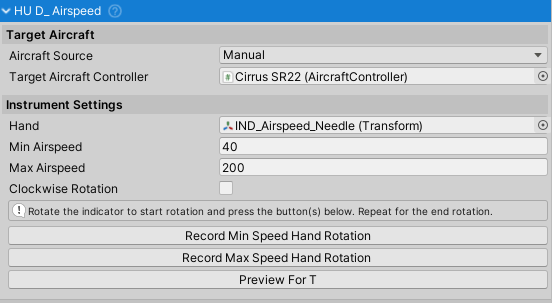
Purpose and Role
The HUD_Airspeed instrument displays current aircraft airspeed on an analog gauge using a rotating needle/hand. It reads the AirspeedKTS property from the aircraft controller and translates it into needle rotation based on configured min/max speeds and rotation angles. This component provides real-time visual feedback of aircraft speed in knots.
Data Source and Update Mechanism
The instrument continuously reads:
- Airspeed from
AircraftController.AirspeedKTS(in knots) - Updates every frame in
Update() - Clamps displayed airspeed to range [0, 2000] kts to prevent invalid display values
Configuration Properties
Speed Range
Min Airspeed (float, kts) - Airspeed corresponding to needle at minimum rotation
- Default: 40 kts
- Typical range: 0-100 kts depending on aircraft
- Represents stall speed or lowest display speed
Max Airspeed (float, kts) - Airspeed corresponding to needle at maximum rotation
- Default: 160 kts
- Typical range: 100-500 kts depending on aircraft
- Represents cruise or VNE (never exceed) speed
Needle Rotation Configuration
Hand (Transform) - The rotating needle/pointer object
- Must be assigned in inspector
- Should rotate around local Z-axis
- Position/rotation adjusted in editor to set min/max positions
Min Speed Rotation (Quaternion) - Hand rotation at minAirspeed
- Set by rotating hand to minimum position and clicking "Record Min Speed Hand Rotation"
- Defines the needle angle when airspeed equals minAirspeed
- Typically 0° or negative angle depending on gauge design
Max Speed Rotation (Quaternion) - Hand rotation at maxAirspeed
- Set by rotating hand to maximum position and clicking "Record Max Speed Hand Rotation"
- Defines the needle angle when airspeed equals maxAirspeed
- Typically 90-270° depending on gauge design
Rotation Direction
- Clockwise Rotation (bool) - Whether needle rotates clockwise
- Default: true
- If true: Needle rotates clockwise from min to max
- If false: Needle rotates counter-clockwise from min to max
- Matches most real aircraft airspeed indicators
Display Range and Calibration
Airspeed Mapping
DisplayedAirspeed = clamp(AirspeedKTS, 0, 2000)
NormalizedValue = (DisplayedAirspeed - minAirspeed) / (maxAirspeed - minAirspeed)
NeedleRotation = interpolate(minSpeedRotation, maxSpeedRotation, normalizedValue)
Calibration Process
- Set speed range - Configure minAirspeed and maxAirspeed to match your gauge
- Set minimum position - Rotate hand to minimum speed marking, click "Record Min Speed Hand Rotation"
- Set maximum position - Rotate hand to maximum speed marking, click "Record Max Speed Hand Rotation"
- Verify direction - Check clockwise rotation setting matches your gauge
- Test - Fly aircraft and verify needle movement matches airspeed
Realistic Airspeed Context
Aircraft airspeed indicators typically display:
- Stall speed: 15-25 kts for light aircraft, 130+ kts for jets
- Normal cruise: 50-100 kts for light aircraft, 250-500 kts for jets
- Never exceed (VNE): 100-160 kts for light aircraft, 500+ kts for jets
Aircraft Source Configuration
The instrument can source aircraft data in two ways:
Manual Source (default)
- Directly assign
targetAircraftControllerin inspector - Works in simple scenes with single aircraft
- More predictable behavior
- Directly assign
Vehicle Changer Source
- Automatically switches to active vehicle via
VehicleChanger.Instance - Useful for multi-aircraft scenarios
- Requires VehicleChanger component in scene
- Automatically switches to active vehicle via
Setup Instructions
Basic Setup
- Create UI/3D element for gauge background (texture or model)
- Create child object for rotating needle/hand (cube, model, etc.)
- Assign hand Transform to Hand property
- Set Min Airspeed and Max Airspeed values
- Rotate hand to minimum position (e.g., left side)
- Click "Record Min Speed Hand Rotation" button
- Rotate hand to maximum position (e.g., right side)
- Click "Record Max Speed Hand Rotation" button
- Verify Clockwise Rotation matches your gauge design
- Assign Target Aircraft Controller (if using Manual source)
- Test in Play mode by flying aircraft
Editor Setup Workflow
1. Select HUD_Airspeed component in hierarchy
2. In inspector, locate Record buttons
3. Adjust hand rotation (Z-axis) to show 40 kts
4. Click "Record Min Speed Hand Rotation"
5. Adjust hand rotation to show 160 kts
6. Click "Record Max Speed Hand Rotation"
7. Toggle "Clockwise Rotation" if needle moves wrong direction
Public API
Properties (Read-only)
All properties are read-only; configured in inspector.
Methods
GetRotationForAirspeed(float airspeedKTS) - Calculate hand rotation for given airspeed
- Returns: Quaternion rotation for the hand
- Used internally but available for custom logic
- Respects min/max clamping and clockwise/counter-clockwise setting
GetCurrentRotation() - Get current hand rotation
- Returns: Current localRotation of hand transform
- Useful for debugging needle position
Common Usage Patterns
Basic Flight Testing
HUD_Airspeed airspeedGauge = GetComponent<HUD_Airspeed>();

// Manually test needle positions
Quaternion minRotation = airspeedGauge.GetRotationForAirspeed(40);
Quaternion maxRotation = airspeedGauge.GetRotationForAirspeed(160);
Quaternion cruiseRotation = airspeedGauge.GetRotationForAirspeed(100);
Custom Speed Range for Specific Aircraft
HUD_Airspeed airspeedGauge = GetComponent<HUD_Airspeed>();

// For a fighter jet with higher speeds
airspeedGauge.minAirspeed = 100;   // Stall speed
airspeedGauge.maxAirspeed = 500;   // High-speed cruise

// Recalibrate needle positions
// (In editor, re-record min/max rotations)
Dynamic Aircraft Switching
// With VehicleChanger source, instrument automatically updates
airspeedGauge.aircraftSource = HUD_Instrument.AircraftSource.VehicleChanger;

// Then switching aircraft automatically updates the displayed airspeed
Integration with Other Systems
- AircraftController - Source of airspeed data (AirspeedKTS property)
- VehicleChanger - Optional automatic aircraft source switching
- HUD_Instrument - Base class providing common instrument functionality
- Other HUD instruments - Share same aircraft reference for synchronized displays
Troubleshooting
Needle Not Moving
- Check hand Transform is assigned
- Verify target AircraftController is assigned and has valid aircraft
- Confirm aircraft is moving (airspeed > 0)
- Check that hand rotation was recorded (min and max)
Needle Rotating Wrong Direction
- Toggle Clockwise Rotation setting
Display Range Wrong
- Adjust Min Airspeed and Max Airspeed values
- Re-record hand positions with "Record Min/Max Speed Hand Rotation" buttons
- Verify needle is at correct position before recording
Needle Stuck at Minimum/Maximum
- Airspeed exceeds configured range; increase Max Airspeed or decrease aircraft speed
- Verify clamp range is reasonable (system clamps to [0, 2000] kts)
Related Classes
HUD_Instrument- Base class for all flight instrumentsAircraftController- Source of airspeed dataHUD_Altimeter- Altitude display instrumentHUD_Attitude- Pitch/roll attitude indicatorHUD_Heading- Compass heading indicatorHUD_Turn- Turn rate indicatorHUD_VerticalSpeed- Vertical speed indicator