AircraftController
Purpose and Role
The AircraftController coordinates aircraft physics in NWH Aerodynamics. It connects aircraft components, including propulsion, lights, effects, instruments, sound systems, and environmental interactions.
It manages aerodynamic forces, flight dynamics, engines, control surfaces, landing gear, fuel, and flight instruments. The AircraftController supplies the framework and flight data calculations; the independent aircraft components work together to determine flight behavior.
This component extends the Vehicle base class and requires a Rigidbody, VariableCenterOfMass component, and AircraftInputManager. Use its interface to query aircraft state and connect custom systems. The aircraft also requires scene-level input providers. These are separate from the per-aircraft input manager and can serve multiple aircraft.
Component-Based Architecture
NWH Aerodynamics divides aircraft behavior among independent, reusable components, each with a specific role. The AircraftController connects them instead of handling every system in one component.
Design Philosophy
Decoupled Subsystems: Each aircraft subsystem (engines, control surfaces, fuel system, instruments, audio, etc.) is implemented as a separate component that can be:
- Added or removed independently
- Configured separately without affecting other systems
- Reused across different aircraft
- Extended with custom functionality
Component Interaction: Components interact through:
- The AircraftController as a central reference point
- Shared Rigidbody for physics
- Public event systems (OnCollision, etc.)
- Direct property access through the AircraftController
Modular Aircraft Design: An aircraft is composed by adding the components it needs:
- A simple glider has: AircraftController + Rigidbody + VariableCenterOfMass + AircraftInputManager + Airfoils
- A powered aircraft adds: Engines + Propulsors + Fuel System
- A complex aircraft adds: Landing Gear + Sound Systems + Instruments + Effects + Advanced Controls
- A player-controlled aircraft also needs one aircraft provider, such as
InputSystemAircraftInputProvider
Add only the components an aircraft needs to control its complexity and overhead. Aircraft input providers are scene-level and shared among all aircraft, while each aircraft has its own AircraftInputManager.
Architecture Overview
The AircraftController manages these subsystems:
Core Aerodynamics
- Airfoil sections - Generate lift and drag based on airspeed and angle of attack
- Control surfaces - Ailerons, elevators, rudders modify aerodynamic forces for flight control
- Drag objects - Handle non-lift producing drag (fuselage, landing gear)
- Wind effects - Accounts for environmental wind affecting relative airflow
Aircraft Systems
- Engines - Piston or turbine engines with propeller/jet propulsion
- Landing gear - Ground contact detection and retraction/extension
- Fuel system - Multiple tanks with consumption modeling
- Instruments - Real-time flight data display (airspeed, altitude, attitude, heading)
- Sound management - Aircraft audio including engines, wind, and crash effects
- Effects - Lights, smoke systems, exhaust visualization
Physics Integration
- Center of mass - Can include fuel and payload mass affectors through
VariableCenterOfMass; changing affectors requires an explicitMarkDirty()call - Flight data - Calculates Rigidbody/world speed, angle of attack, pitch/roll/yaw, altitude, and heading
- Relative airflow - Airfoils and drag objects account for environmental wind separately
Setup Requirements
Per-Aircraft Components
The AircraftController automatically requires:
- Rigidbody - Physics body with appropriate mass and inertia tensor for realistic flight
- VariableCenterOfMass - Manages dynamic center of mass adjustments
- AircraftInputManager - Per-aircraft input manager that receives input from providers and distributes to control surfaces
- One per aircraft (automatically added with AircraftController)
- Retrieves input from scene-level input providers
- Stores input states (throttle, ailerons, elevator, rudder, etc.)
- Can be manually controlled or auto-fed from input providers
Scene-Level Components (Shared)
The scene must contain an aircraft provider to supply player flight controls:
InputSystemAircraftInputProvideruses the shipped Input System bindings.InputManagerVehicleInputProvidersupports legacy Input Manager bindings.MobileAircraftInputProviderreads assigned mobile controls.- A custom source derives from
AircraftInputProviderBase.
These providers are scene-global contributors. Common providers derived from
SceneInputProviderBase are separate and supply camera, vehicle-changing, character, and demo-UI
input; they do not supply aircraft controls.
Rigidbody Configuration
Configure the Rigidbody for realistic flight:
- Mass - Should reflect aircraft weight (typical: 500-5000 kg for general aviation)
- Drag - Leave at default or 0; aerodynamics handle drag calculation
- Angular Drag - Typically 0.05-0.1 for realistic rotational behavior
- Constraints - Uncheck "Freeze Rotation" to allow full 6-DOF motion
Inertia Tensor
The aircraft's inertia tensor controls rotational dynamics and stall behavior:
- Pitch inertia (X) - Controls pitch sensitivity; higher values = slower pitch response
- Roll inertia (Z) - Controls roll sensitivity; higher values = slower roll response
- Yaw inertia (Y) - Controls yaw sensitivity; higher values = slower yaw response
Configure mass and inertia on the Rigidbody and VariableCenterOfMass components. The package
does not ship an Aircraft Setup Wizard.
Inspector Interface
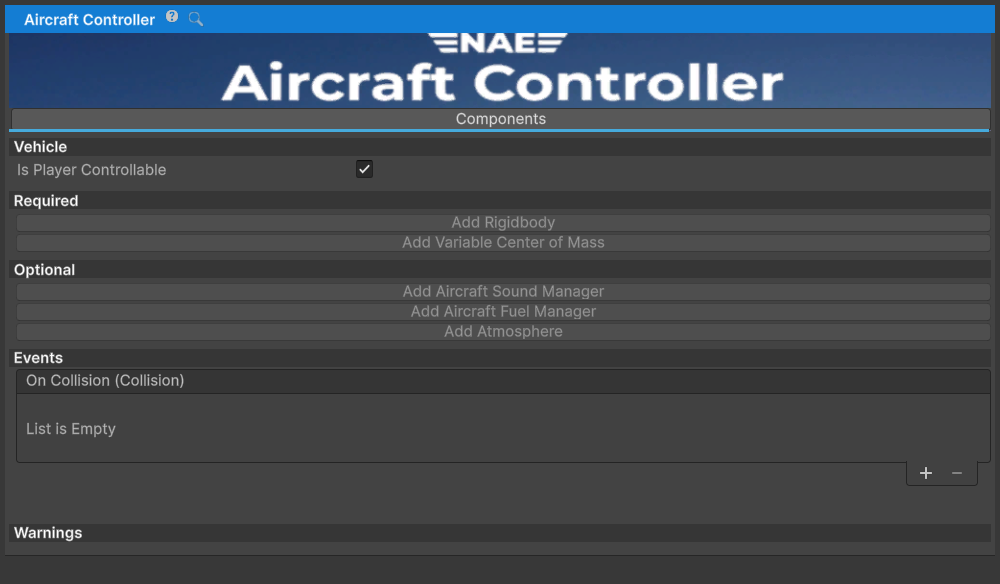
The AircraftController custom inspector exposes a Components tab.
Components Tab
The tab has buttons for components on the same GameObject. A button is disabled when that component is already present.
Available component options include:
- Required:
RigidbodyandVariableCenterOfMass - Optional:
AircraftSoundManager,AircraftFuelManager, andAtmosphere
AircraftInputManager is also required by AircraftController and Unity adds it through the
component's RequireComponent declaration. Engines, propulsors, control surfaces, landing gear,
fuel tanks, effects, and instruments are configured on their own GameObjects; the Components tab
does not create them.
Public API
Flight Data Properties (Read-only)
These properties provide real-time flight information updated during physics simulation:
Velocity and Speed
Airspeed (float, m/s) - Magnitude of air-relative velocity: Rigidbody world velocity minus the active
WindGeneratorBaseair-mass velocity.- Typical values: Stall 15-25 m/s, cruise 50-100 m/s, fast aircraft 125-250 m/s
AirspeedKTS (float, knots) - Airspeed converted to nautical knots for display purposes.
RateOfClimb (float, m/s) - Vertical speed; positive indicates ascending, negative indicates descending.
RateOfClimbFtMin (float, feet/minute) - Vertical speed converted to feet per minute for instruments.
Attitude and Orientation
Heading (float, degrees) - Compass heading (0-360°) based on aircraft's forward direction. Used by navigation instruments.
Pitch (float, degrees) - Nose-up attitude angle (-90° to 90°). Positive values indicate nose-up pitch.
Roll (float, degrees) - Bank angle (-180° to 180°). Positive values indicate right wing up (left wing down), following Unity's positive rotation about local +Z.
Yaw (float, degrees) - Sideslip angle relative to velocity vector. Indicates deviation from flight path.
Aerodynamic Parameters
AngleOfAttack (float, degrees) - Angle between aircraft's longitudinal axis and relative airflow. Critical for lift generation and stall behavior.
- Normal flight: 2-8°
- Maximum lift: 12-16° (varies by airfoil)
- Stall angle: 16-20° for most aircraft
GlideRatio (float) - Ratio of horizontal to vertical speed in gliding flight. Higher values indicate better glide efficiency.
Position
Elevation (float, meters) - Altitude above reference level. Accounts for floating origin offset if present.
ElevationFt (float, feet) - Altitude converted to feet.
Ground Contact
- LandingGearTouchingGround (bool) - True if any landing gear wheel is in contact with ground.
Events
- OnCollision (CollisionEvent) - Triggered when aircraft collides with objects. Receives the Collision information for custom handling.
Flight Data Calculations
UpdateFlightData()
Called automatically each FixedUpdate, this method recalculates all flight parameters:
Partial example (assumes an initialized aircraftController reference):
// Example: Access flight data in a script
float speed = aircraftController.Airspeed;
float altitude = aircraftController.Elevation;
float aoa = aircraftController.AngleOfAttack;

if (aircraftController.AngleOfAttack > 18f)
{
    // Aircraft approaching stall
    Debug.Log("Stall warning!");
}
The calculations use:
- Airspeed: Magnitude of
Rigidbody.linearVelocity - WindGeneratorBase.GetWindVelocity() - Rate of climb: Ground-relative
Rigidbody.linearVelocity.y - Angle of Attack:
atan2(-bodyY, bodyZ)from air-relative velocity in body axes - Yaw: Sideslip
asin(bodyX / airspeed)from that same body-axis velocity - Heading: Compass bearing
atan2(forward.x, forward.z) - Pitch/Roll: Aircraft world basis vectors, avoiding Euler-angle discontinuities
Integration with Subsystems
Aerodynamics
Airfoils, drag objects, and AircraftController.Airspeed all use wind-relative airflow. Individual
aerodynamic components still calculate velocity at their own force point, including angular
velocity, so controller-level airspeed should not replace those local calculations.
Input System
The input system consists of two components:
AircraftInputManager (per-aircraft):
- Attached to each aircraft automatically with AircraftController
- Retrieves input from scene-level input providers
- Stores and distributes input states to control surfaces
- Can be manually controlled via script for AI aircraft
- Properties include
ThrottleCommon,ThrottleIdle,ThrottleIncrease,ThrottleDecrease,ThrottleFull,Ailerons,Elevator,Rudder,FlapsExtend,FlapsExtendFully,FlapsRetract,FlapsRetractFully, andLandingGear
Input Providers (scene-level, shared):
- Scene-wide classes that capture raw input (keyboard, gamepad, mouse, touch, etc.)
- Implement base classes:
AircraftInputProviderBase(aircraft-specific),SceneInputProviderBase(general) - Aircraft examples:
InputSystemAircraftInputProvider,InputManagerVehicleInputProvider, andMobileAircraftInputProvider - Common scene-provider examples:
InputSystemSceneInputProvider,InputManagerSceneInputProvider, andMobileSceneInputProvider AircraftInputManagercombines only providers derived fromAircraftInputProviderBase- Multiple aircraft providers can contribute, so avoid duplicates that read the same controls
Propulsion
Engines access current airspeed and altitude through the AircraftController for fuel consumption and performance calculations. Engine thrust vectors are applied to the Rigidbody through the propulsion system.
Instruments
Flight instruments (airspeed indicator, altimeter, attitude indicator, heading indicator, turn coordinator, vertical speed indicator) continuously read the AircraftController's flight properties to update displays.
Fuel System
Fuel tanks implement IMassAffector, but AircraftFuelManager does not mark
VariableCenterOfMass dirty as fuel burns. To include changing fuel, enable
useMassAffectors, disable the relevant useDefault... options, and have an external system call
VariableCenterOfMass.MarkDirty() after tank amounts change.
Landing Gear
Landing gear components check LandingGearTouchingGround and collision events for ground contact detection and landing dynamics.
Physics Timestep (High Speed Performance)
The aerodynamics system's performance and stability depend on the physics simulation timestep (FixedDeltaTime). At high speeds, aircraft can stall and become unstable if the physics timestep is too large.
Recommended Settings:
Low speed flight (< 50 m/s): Default 0.02s (50Hz) is acceptable
- Typical slow aircraft, ultralights, helicopters
- 0.02s timestep provides sufficient accuracy
Normal speed flight (50-100 m/s): Use 0.01s (100Hz) for smooth, stable behavior
- Typical general aviation aircraft
- Minimum recommended for reliable flight
- Provides good balance between stability and performance
High speed flight (> 100 m/s): Use 0.005s (200Hz) or lower for stability
- Fighter jets, fast aircraft, commercial aircraft
- Essential for avoiding sudden stalls during control surface direction changes
- The higher the speed achieved by the aircraft, the lower the physics timestep should be
Setting Physics Timestep:
- Go to Project Settings > Time > Fixed Timestep
- Set to desired value:
- 0.02 for low-speed flight
- 0.01 for normal flight (recommended default)
- 0.005 for high-speed flight
- 0.002-0.005 for supersonic speeds or very aggressive maneuvers
Why This Matters: Sudden control surface direction changes at high speeds cause rapid changes in acceleration. A large physics timestep can miss these state changes, causing stalls or unexpected behavior. A smaller timestep improves force calculation accuracy and control response.
Performance Impact: Smaller timesteps (higher update rate) increase CPU load. Monitor frame rate when adjusting:
- Desktop: Can typically handle 200Hz+ physics
- Mobile/VR: May be limited to 100Hz or lower
- Large scale worlds: Consider impact on overall performance
Common Usage Patterns
Accessing Flight Data
Partial example (surrounding MonoBehaviour and namespace imports omitted):
AircraftController aircraft = GetComponent<AircraftController>();

// Read current flight parameters
Debug.Log($"Altitude: {aircraft.ElevationFt} ft");
Debug.Log($"Airspeed: {aircraft.AirspeedKTS} kts");
Debug.Log($"Rate of Climb: {aircraft.RateOfClimbFtMin} ft/min");
Debug.Log($"Attitude: {aircraft.Pitch}° pitch, {aircraft.Roll}° roll");
Detecting Stall Conditions
Partial example (assumes initialized aircraft and audio references):
if (aircraft.AngleOfAttack > 16f && aircraft.Airspeed < 25f)
{
    // Aircraft in stall condition
    audioSource.PlayOneShot(stallWarningSound);
}
Detecting Ground Contact
Partial example (assumes an initialized aircraft reference):
if (aircraft.LandingGearTouchingGround)
{
    // Apply landing dynamics, reduce speed, etc.
    aircraft.GetComponent<Rigidbody>().drag = 0.5f;
}
Handling Collisions
Partial example (assumes initialized aircraft and audio references):
aircraft.OnCollision.AddListener((collision) =>
{
    if (collision.relativeVelocity.magnitude > 20f)
    {
        // High-speed crash; trigger damage system
        audioSource.PlayOneShot(crashSound);
    }
});
Monitoring Flight State
Partial example (surrounding MonoBehaviour and field declarations omitted):
void FixedUpdate()
{
    if (aircraft.RateOfClimb > 5f)
    {
        // Ascending at good rate
        climbIndicator.SetActive(true);
    }

    if (aircraft.Heading > 270f && aircraft.Heading < 360f)
    {
        // Heading is north-northwest
    }
}
Configuration and Setup Examples
Scene Setup
Before flying an aircraft, add at least one aircraft input provider to the scene:
Aircraft providers (choose the implementation required by the project):
- InputSystemAircraftInputProvider - Shipped Input System bindings
- InputManagerVehicleInputProvider - Legacy Input Manager compatibility
- MobileAircraftInputProvider - Assigned mobile controls
These providers are scene-global and contribute to each enabled aircraft's
AircraftInputManager. Add an InputSystemSceneInputProvider,
InputManagerSceneInputProvider, or MobileSceneInputProvider separately when the scene also
needs camera, vehicle-changing, or character controls.
Setting Up a Cessna-like Aircraft
- Create aircraft geometry (fuselage, wings, tail meshes)
- Add Rigidbody (mass ≈ 1200 kg, constraints: none)
- Add AircraftController component (automatically adds AircraftInputManager)
- Add control surfaces:
- Main wing: Aileron control surfaces
- Horizontal stabilizer: Elevator control surfaces
- Vertical stabilizer: Rudder control surface
- Add engine (Piston Engine + Propeller Propulsor)
- Add landing gear (3-point configuration)
- Add fuel tanks and fuel manager
- Add flight instruments
- Configure inertia on
VariableCenterOfMassor use the Rigidbody's default inertia tensor - Ensure an aircraft input provider exists in the scene
Setting Up a Fighter Jet
- Similar steps as above but with:
- Higher mass and inertia values
- Jet propulsion (Turbine Engine + Jet Propulsor)
- High-speed performance: Set Fixed Delta Time to 0.005s (200Hz)
- More responsive control surface curves
- Enhanced effects system
Flight Dynamics and Physics
Aerodynamic Force Generation
The AircraftController coordinates force generation from multiple sources:
Lift and Drag:
- Airfoils generate lift based on angle of attack and airspeed
- Drag is calculated from airspeed and drag coefficient
- Net forces are applied to the Rigidbody through forces and torques
- Total aerodynamic force depends on all active airfoil sections combined
Control Surface Input:
- Ailerons affect roll through differential lift on wings
- Elevators affect pitch through elevator surface deflection
- Rudders affect yaw through vertical stabilizer forces
- Flaps modify lift curve and increase drag for takeoff/landing
Engine Thrust:
- Engines produce thrust based on throttle input
- Propulsors apply thrust vector to aircraft
- Thrust directly affects airspeed and climb rate
- Engine performance varies with altitude and airspeed
Center of Mass Management
When useMassAffectors is enabled, VariableCenterOfMass can include fuel tanks and other
IMassAffector implementations in the aircraft's mass, center-of-mass, and inertia calculations.
It does not monitor changing fuel, payload, or cargo values automatically. After an affector's mass
or position changes, an external system must call VariableCenterOfMass.MarkDirty() so the values
are recalculated during the next FixedUpdate.
This affects:
- Aircraft stability and handling characteristics
- Stall speed (increases with weight)
- Turn performance (heavier = larger turn radius)
- Climb rate (reduces with weight)
Note: VariableCenterOfMass is part of NWH Common. For more information, see NWH Common - Variable Center of Mass.
Advanced Topics
Extending AircraftController
The AircraftController can be extended through:
Inheritance:
Partial example (namespace imports and project-specific behavior omitted):
public class CustomAircraft : AircraftController
{
    public override void FixedUpdate()
    {
        base.FixedUpdate();

        // Add custom physics or behavior
    }
}
Component Composition: Create custom MonoBehaviours that reference the aircraft:
Partial example (namespace imports and project-specific behavior omitted):
public class DamageSystem : MonoBehaviour
{
    private AircraftController aircraft;

    void Start()
    {
        aircraft = GetComponentInParent<AircraftController>();
    }

    void Update()
    {
        // Monitor aircraft state and apply custom logic
    }
}
Event Subscription: Hook into aircraft events:
Partial example (assumes an initialized aircraft reference and a compatible HandleCrash
method):
aircraft.OnCollision.AddListener(HandleCrash);
Integrating Custom Systems
To integrate custom systems with AircraftController:
Reference the Aircraft:
- Use
GetComponentInParent<AircraftController>() - Or assign directly in inspector
- Use
Read Flight Data:
- Query Airspeed, Heading, Pitch, Roll, etc.
- Use RateOfClimb for vertical flight data
- Access AngleOfAttack for stall detection
Modify Aircraft Behavior:
- Apply forces to the Rigidbody directly if needed
- Modify control surface inputs through AircraftInputManager
- Subscribe to events for reactive behavior
Update Game Systems:
- HUD displays update based on flight data
- Audio systems respond to airspeed and engine state
- AI systems use flight data for decision-making
Handling Edge Cases
Stall Behavior:
- Monitor AngleOfAttack and Airspeed
- Apply recovery procedures (lower nose, increase power)
- Implement stall warning systems
Inverted Flight:
- Roll angle can exceed ±90°
- Pitch can reach ±90° (inverted vertical)
- Negative lift at high angles of attack
- Control effectiveness changes when inverted
Supersonic Flight:
- Very high airspeeds require lower Fixed Timestep
- Shock waves and compressibility effects not included in basic physics
- Consider control surface saturation and lag
Floating Point Precision:
- Use ShiftingOrigin for large worlds
- AircraftController.Elevation accounts for origin offset
- Flight data remains accurate across world shifts
Note: For ShiftingOrigin setup, networking, and best practices, see NWH Common - Shifting Origin.
Troubleshooting Common Issues
Aircraft Won't Fly
No airflow generated:
- Check Rigidbody has non-zero mass
- Verify control surfaces are assigned
- Confirm airfoils are present and configured
Airfoils not generating lift:
- Verify airfoil angle of attack curves are configured
- Check control surface input is being registered
- Ensure aircraft is moving (airspeed > 0)
Physics unstable or erratic:
- Reduce Fixed Timestep (0.01 or lower)
- Check Rigidbody mass is reasonable
- Verify no extreme inertia tensor values
- Ensure collision geometry is valid
Aircraft Uncontrollable
Control surfaces not responding:
- Verify input is reaching AircraftInputManager
- Check control surface deflection ranges
- Confirm control surface is assigned to aircraft
Aircraft spins out or stalls:
- May be inverted flight - check Roll/Pitch values
- Reduce airspeed to recover
- Increase pitch to increase angle of attack
- Reduce Fixed Timestep for smoother behavior
Overshooting turns:
- Reduce control input sensitivity
- Use damping/smoothing on control inputs
- Verify inertia tensor values (increase for more stable handling)
Unrealistic Flight Behavior
Aircraft feels too heavy/light:
- Adjust Rigidbody mass
- Verify engine thrust is adequate
- Check airfoil configurations
Stall handling unrealistic:
- Configure stall angle in airfoil settings
- Implement custom stall recovery logic
- Monitor AngleOfAttack for stall warnings
Speed feels wrong:
- Check environment wind settings
- Verify engine thrust values
- Confirm drag calculations are correct
Related Classes
Vehicle- Base class providing Rigidbody management and update loopAircraftMonoBehaviour- Base class for aircraft components with automatic parent referencingAircraftInputManager- Handles input capture and distributionVariableCenterOfMass- Manages dynamic center of mass adjustmentsAirfoil- Aerodynamic surface generating lift and dragControlSurface- Control surface types (aileron, elevator, rudder, flap)AircraftEngineBase- Base for piston and turbine enginesLandingGear- Landing gear wheel with ground detectionAircraftFuelManager- Discovers fuel consumers and tanks, selects the source tanks, and applies fuel consumption; it does not markVariableCenterOfMassdirty